Wireless Mighty Mouse on Ubuntu Linux 16 years, 10 months ago by Martey Dodoo
Update: These instructions were written for Ubuntu Linux 7.04 ("Feisty Fawn"). They are not necessary to configure Bluetooth devices in more recent versions of Ubuntu.
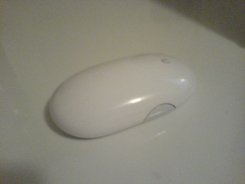
I first used a wired Mighty Mouse on a friend's MacBook Pro. Excited about the possibility of getting the wireless model (because, let's face it, everyone loves wireless peripherals), I searched the Internet for information about whether anyone had gotten it working on Linux. While I found some long how-tos describing how to get the wired version of the mouse working, there was a paucity of information about the wireless model, which uses Bluetooth.
At some point this week, I ran across a reference to it while browsing the Apple Store (either because of the Santa Rosa update to the MacBook Pro or for work-related purposes). My interest yet again piqued, I looked again for information about getting it working in Ubuntu. Finding a page that suggested that it was relatively easy, I bought it.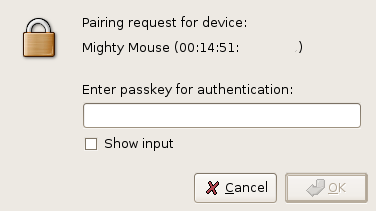
Configuring it to work with Ubuntu 7.04 (Feisty Fawn) was actually easier than the page I found had suggested. As the image to the right shows, all I needed to do was enable Bluetooth on my laptop, turn the mouse on, and then pair the two devices (the Mighty Mouse's default PIN is 0000).
Getting horizontal scrolling to work was a bit more difficult. Luckily, I was able to adapt directions from the Ubuntu forums. I added the following to my /etc/X11/xorg.conf:Section "InputDevice"
Identifier "MightyMouse"
Driver "evdev"
Option "CorePointer"
Option "Name" "Apple Computer, Inc. Mighty Mouse"
Option "HWHEELRelativeAxisButtons" "7 6"
Option "Buttons" "8"
EndSection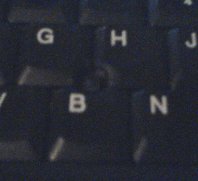
The "Name" option might be different depending on your model of Mighty Mouse. Since there can only be one "CorePointer," I had to remove it from my Trackpoint. Unfortunately, this means that the Trackpoint no longer works. See comments for an update. In my mind, though, this is a reasonable price to pay for the coolness of horizontal scrolling. As you can see from the image to the right left, I have removed the Trackpoint's cap from my laptop in order to discourage me from using it. It is slightly more difficult to remember that the buttons below it also do not work, though. Still, in between the Mighty Mouse and my Thinkpad's touchpad, I am certain that I will adjust.